



Why a dedicated plugin?
If you work on your photo workflow in Adobe Lightroom Classic, you don't want to manually export your JPEGs to an intermediate folder before uploading them by hand.
The Photoweb Cloud plugin plugs straight into Lightroom's Publish Services panel. Your cloud albums appear as native collections: you drag, you drop, it's published.
What the plugin does
Five key features to integrate Photoweb Cloud into your editing workflow.
Direct photo import
Drag and drop your shots from your Lightroom catalogue into a Photoweb Cloud album. No more intermediate step.
Videos supported
The plugin also handles the video files in your catalogue. All your content reaches Photoweb Cloud through the same channel.
IPTC metadata
Captions, keywords, titles, copyright… your IPTC metadata travels with the files and stays searchable in Photoweb Cloud.
EXIF data preserved
Capture date, camera model, focal length, aperture, ISO: the EXIF information is kept and displayed in your cloud.
Custom watermark
Apply your Lightroom watermark on publishing, to protect your professional shots in one click. Configurable from the export panel.
Install in 4 minutes
A single procedure for Windows and macOS. No developer account or third-party tool required.
-
1
Download the archive
Get the
joomeo.lrplugin_V25.10.6.zipfile via the button at the top of the page. -
2
Unzip into the Adobe Lightroom Classic folder
Extract the contents of the
.zipinto the Adobe Lightroom Classic folder on your computer. You'll get ajoomeo.lrpluginfolder. -
3
Add the plugin in Lightroom
In Lightroom, open File → Plug-in Manager. Click Add, browse to the
joomeo.lrpluginfolder and confirm. Enable the plugin in the Status area. -
4
Set up the publish service
In the Publish Services panel, click Set Up… next to Joomeo / Photoweb Cloud. Enter the service name, your Photoweb Cloud credentials and your export preferences.
Day to day: two actions, two results.
Drag and drop
In the Lightroom library, select one or more photos and drag them into a Photoweb Cloud album in the Publish Services panel. Click Publish.
Via the Export function
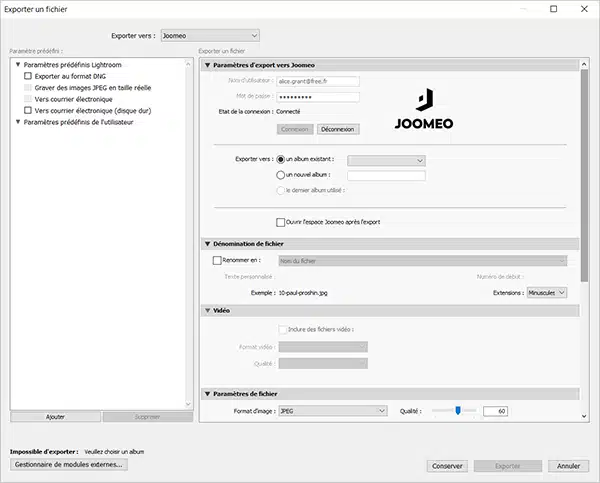
From any Lightroom module, use File → Export, choose Photoweb Cloud as the destination, adjust the settings and confirm.
See the plugin in action
A preview of the full flow: from Lightroom Classic to your shots appearing in Photoweb Cloud.

Frequently asked questions
Which Lightroom versions does the plugin work with?
Why is the plugin still called Joomeo?
Are my photos compressed when published?
Does the plugin automatically create albums in the cloud?
Ready to install it?
Free download, install in under 4 minutes. Our support team is available if you run into any difficulty.